Internet Explorer - Text Shadow and Glow
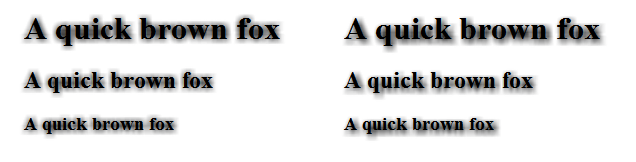
The idea is that first we use Glow to create a halo around the text and then blur it with Blur. The resulting shadow is then placed under the text using absolute positioning. The result is acceptable but slightly rough especially if the shadow is moved relative to the text.
https://www.artlebedev.com/tools/technogrette/html/filters-in-ie/i/ie-shadow-1.png
.shadowed .shadow-1
{
	left: -7px;
	top: -7px;
	filter: progid:DXImageTransform.Microsoft.Glow(Color=#eeeeee,Strength=2)
	progid:DXImageTransform.Microsoft.Blur(pixelradius=5, enabled='true');
	-ms-filter: "progid:DXImageTransform.Microsoft.Glow(Color=#eeeeee,Strength=2)"
	"progid:DXImageTransform.Microsoft.Blur(pixelradius=5, enabled='true')";
}
.shadowed .shadow-2
{
	left:-5px;
	top:-5px;
	filter: progid:DXImageTransform.Microsoft.Glow(Color=#eeeeee,Strength=2)
	progid:DXImageTransform.Microsoft.Blur(pixelradius=5, enabled='true');
	-ms-filter: "progid:DXImageTransform.Microsoft.Glow(Color=#eeeeee,Strength=2)"
	"progid:DXImageTransform.Microsoft.Blur(pixelradius=5, enabled='true')";
}
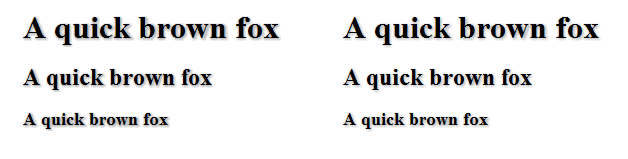
Turns out, the Glow filter is at fault here. To make it nice, let’s turn its strength down to 1, change the color to black (the alternative is to replace Glow by dropShadow which has more understandable parameters) and add another filter, Alpha. Here is the result (Glow on the left, dropShadow on the right, the differences are negligible to the naked eye and can be brought down to zero with further tweaking):
https://www.artlebedev.com/tools/technogrette/html/filters-in-ie/i/ie-shadow-2.png
.shadowed .shadow-3
{
	filter: progid:DXImageTransform.Microsoft.Glow(Color=#000000,Strength=1.0)
	progid:DXImageTransform.Microsoft.Alpha(opacity=25)
	progid:DXImageTransform.Microsoft.Blur(pixelradius=1.75, enabled='true');
	-ms-filter: "progid:DXImageTransform.Microsoft.Glow(Color=#000000,Strength=1.0)"
	"progid:DXImageTransform.Microsoft.Alpha(opacity=25)"
	"progid:DXImageTransform.Microsoft.Blur(pixelradius=1.75, enabled='true')";
	color: #111111;
	top: -2px;
	left: -2px;
}
.shadowed .shadow-4
{
	filter: progid:DXImageTransform.Microsoft.dropShadow(color=#000000,offX=1,offY=1)
	progid:DXImageTransform.Microsoft.Alpha(opacity=25)
	progid:DXImageTransform.Microsoft.Blur(pixelradius=2.15, enabled='true');
	-ms-filter: "progid:DXImageTransform.Microsoft.dropShadow(color=#000000,offX=1,offY=1)"
	"progid:DXImageTransform.Microsoft.Alpha(opacity=25)"
	"progid:DXImageTransform.Microsoft.Blur(pixelradius=2.15, enabled='true')";
	color: #111111;
	top: -2px;
	left: -2px;
}
Reference: [Artlebedeb: Using filters in IE]